The Aprox watch app puts your servers on your wrist. You can see whether every server is up, start and shut down guests, restart and wake nodes, follow running tasks and start garbage collection on a Backup Server. A complication or tile shows cluster health right on your watch face. The watch app is part of Aprox Pro and exists for Apple Watch and for Wear OS.
How it works
The watch never talks to Proxmox itself. Your phone does all the work:
- The phone signs in to your servers, checks them and runs every action. It then sends the watch a summary.
- Your passwords and API tokens never leave the phone.
- Everything the phone handles works on the watch too: pinned self-signed certificates, servers with two-factor sign-in (once signed in on the phone), Backup Servers and the built-in demo.
- The watch needs its phone nearby: over Bluetooth, on the same Wi-Fi, or (Apple Watch) with the iPhone reachable.
- The watch always shows the last data it received, with its age ("Updated …").
Requirements
- Aprox Pro on the phone. The watch has no purchase of its own. On the phone, the watch app is listed on the Aprox Pro screen as Apple Watch (iPhone) or Watch app (Android).
- Apple Watch: watchOS 26 or later, paired with an iPhone that has Aprox installed. The watch app does not work with an iPad.
- Wear OS: Wear OS 3 or later, paired with an Android phone that has Aprox installed and uses the same Google account. The watch app does not work on its own.
- For actions in the background: each server needs a saved password (Save password to Keychain) or an API token on the phone, and Aprox on the phone needs the local network permission if your servers are on your home or office network.
Where to find it
- Apple Watch: Aprox installs on the watch together with the iPhone app when automatic app install is on. Otherwise, open the Watch app on your iPhone, find Aprox under available apps and tap Install. Then open Aprox from the watch's app list.
- Wear OS: install Aprox on the watch, then open it from the watch's app list.
The watch shows the servers you have added in Aprox on the phone. You cannot add or edit servers on the watch.
Find your way around
- Server list (Aprox): every server with its state (Online, Offline, Connecting… or Needs attention) and either "Nodes online: x/y" (Proxmox VE) or "Datastores: N" (Backup Server). The list also has Refresh and shows when the data was last "Updated …".
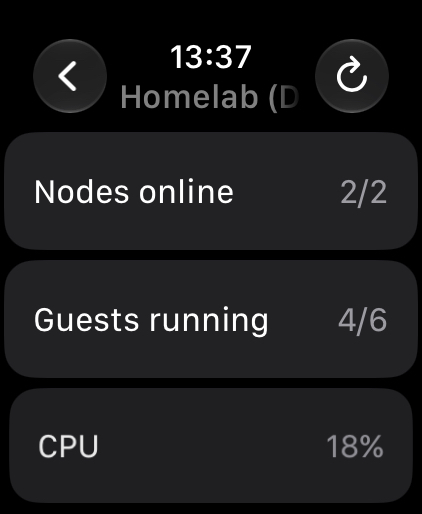
- A Proxmox VE server: a summary with Nodes online and Guests running (Wear OS also shows Average CPU), then:
- Nodes;
- Guests, running guests first;
- Tasks, with Running Tasks and their progress, plus recently Succeeded and Failed tasks.
- A node: Status (Online or Offline), CPU, Memory ("x of y"), Uptime, Guests running, and its actions.
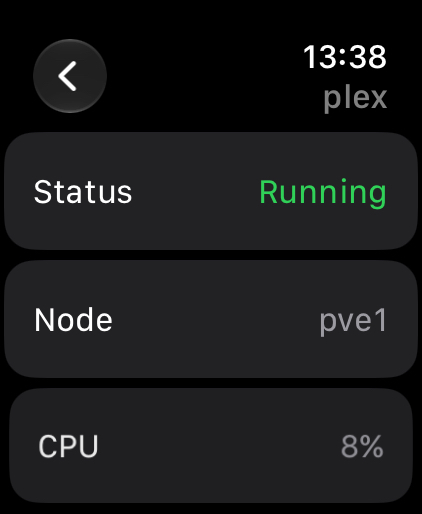
- A guest: status, CPU, Memory, Uptime, and its actions.
- A Backup Server › Datastores › a datastore: Used, Estimated Full (or No estimate), and its actions.
To get fresh data, tap Refresh on the server list. The watch asks the phone, which checks every server and sends back the result.
Power a guest
- Open a server › Guests and tap a guest, for example
plex. - Tap an action: Start, Shut Down, Reboot or Stop. Virtual machines also offer Pause and Resume.
- Stop asks first ("Cut power without telling the guest."). Confirm to go ahead. All other guest actions run at once.
Hibernate and Reset are available only on the phone.
Restart, shut down or wake a node
- Open a server › Nodes and tap a node, for example
pve2. - For an online node, tap Restart Node or Shut Down Node (Wear OS: Restart or Shut Down). Both always ask for confirmation. On the watch this is a plain confirmation; you do not type the node's name as on the phone.
- For an offline node, tap Wake Node (Wear OS: Wake) to send a Wake-on-LAN packet.
Run garbage collection or verify a datastore
- Open a Backup Server › Datastores and tap a datastore.
- Tap Start Garbage Collection, or Verify All.
- Verify All asks first: "Verify every snapshot in <datastore>?" Snapshots verified in the last 30 days are skipped.
What happens after you tap an action
- Each item runs one action at a time. The button shows progress while the phone works on it.
- If the action takes longer than about 25 seconds, for example a guest that takes a while to shut down, the watch gets an "ok" from the phone and the result arrives with the next update. The action keeps running.
- On Wear OS, the result reads Done, That did not work, Continue on phone or "Your phone could not be reached.". On Apple Watch, a failed action shows the phone's error message.
Note
Every action from the watch needs Aprox Pro, including guest and node power, which are free on the phone itself.
Add cluster health to your watch face
Apple Watch complication "Cluster Health"
The complication shows "Whether every server is up, and how many guests are running."
- Touch and hold the watch face, then tap Edit.
- Swipe to Complications and tap a complication slot.
- Choose Aprox › Cluster Health.
It comes in the circular, rectangular, inline and corner styles and shows All servers healthy or Needs attention: N, together with Guests running: N. Once its data is older than 30 minutes, it adds "Updated … ago". Before the first sync with the iPhone it reads "Open Aprox on your iPhone.", and without Aprox Pro it shows a lock.
Wear OS tile "Cluster health"
The tile shows "Servers, nodes and guests at a glance."
- On the watch face, swipe to the end of your tiles and tap + (or edit tiles in the Wear OS app on your phone).
- Choose Aprox › Cluster health.
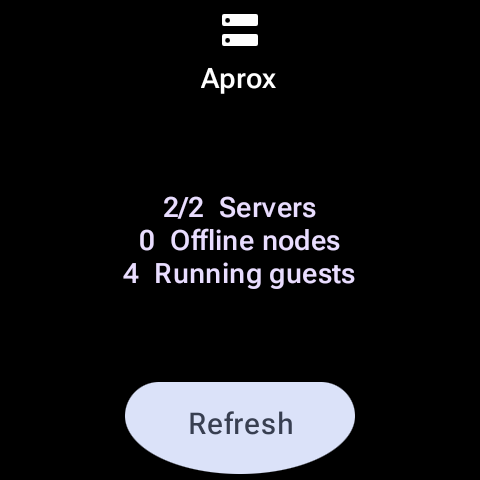
It shows x/y Servers, N Offline nodes and N Running guests. Tap Refresh on the tile to ask the phone for new data, or tap the tile to open the app. Without Aprox Pro it shows a lock.
Wear OS complication "Running guests"
- Touch and hold the watch face and tap Edit (or the settings icon).
- Tap a complication slot and choose Aprox › Running guests.
As short text, it shows the number of offline nodes ("offline") if any node is down, otherwise the number of running guests ("running"). Watch faces that show a ranged value see the share of nodes that are online.
Messages you may see
| Apple Watch | Wear OS | What to do |
|---|---|---|
| Open Aprox on your iPhone — "Your watch shows the servers Aprox on your iPhone is connected to. Keep your iPhone nearby." (Try Again) | Waiting for your phone | The watch has no data yet. Open Aprox on the phone and keep it nearby. |
| "Your iPhone is out of reach. This is what it last sent." | Phone not reachable — "Bring your phone closer, or connect both to the same Wi-Fi." / "Your phone cannot be reached. This is what it last sent." | Bring the phone closer or connect both to the same Wi-Fi. |
| — | Aprox is not on your phone (Install on phone) | Install Aprox on the phone. |
| Aprox Pro — "Unlock it in Aprox on your iPhone." (Check Again) | Aprox Pro (Unlock on phone, which opens the Aprox Pro screen on the phone) | Buy or restore Aprox Pro on the phone. |
| Update Aprox on your watch | Update Aprox on your watch / "Update Aprox on your phone to use this from your watch." | The watch and phone apps have different versions. Update the one that is behind. |
| "Add a server in Aprox on your iPhone." | No servers yet | Add a server in Aprox on the phone. |
| Needs attention on a server | "Sign in to this server in Aprox on your phone.", "Enter the code from your authenticator app in Aprox on your phone.", "Confirm this server's certificate in Aprox on your phone." | Finish signing in, the two-factor step or the certificate check in Aprox on the phone. |
Without Aprox Pro you can still tap Refresh, so a purchase on the phone reaches the watch right away.
Good to know
- Servers on your local network work from the watch only after you have granted the local network permission in the phone app.
- A server that asks for a two-factor code cannot be signed in from the watch. Sign in on the phone first.
- Proxmox permissions apply exactly as on the phone, because the phone runs the action with your account.
- The watch app is available in the same languages as the phone app.