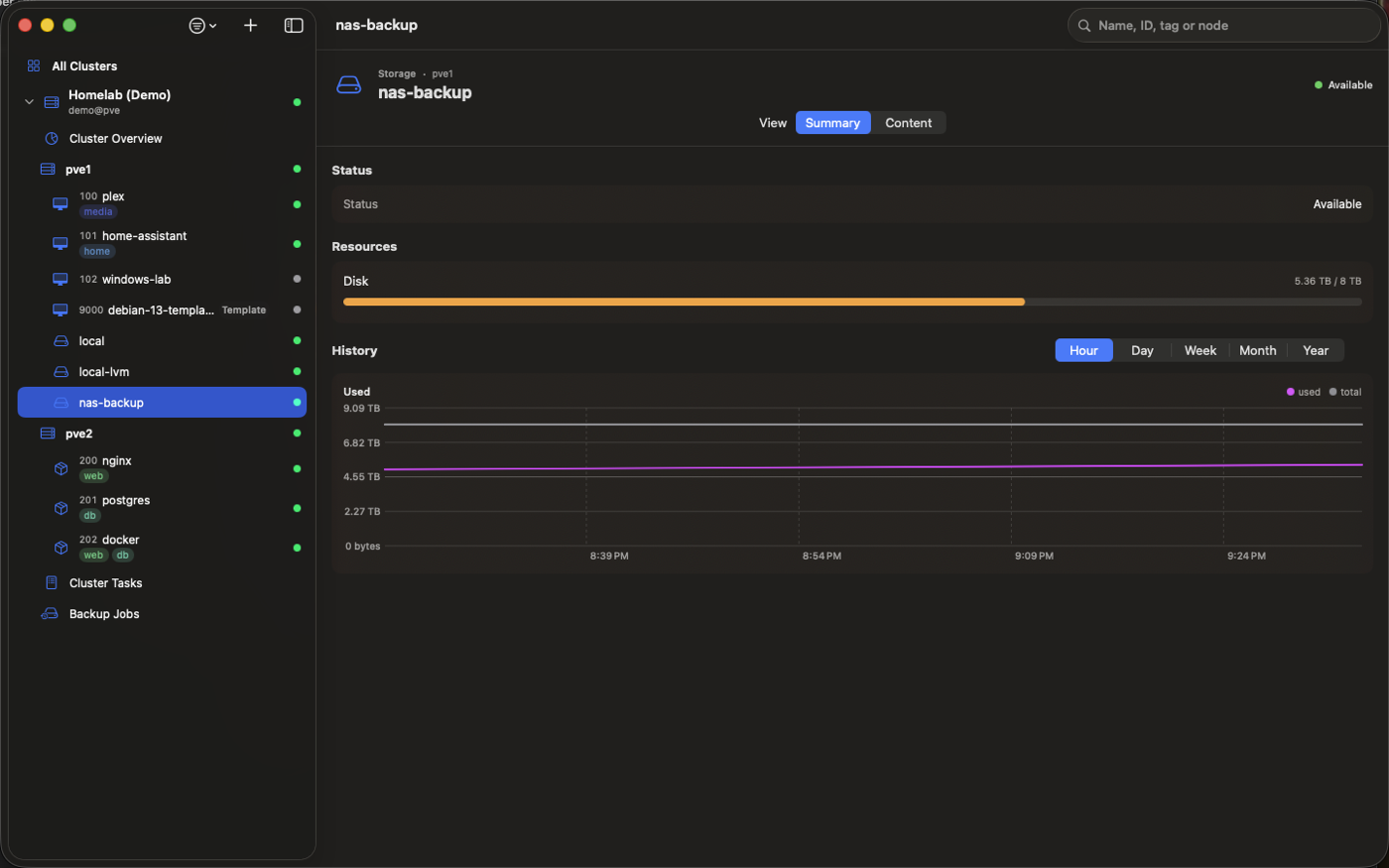
Every storage that your Proxmox VE cluster defines, such as local, local-lvm or nas-backup, has its own page in Aprox. The Summary tab tells you at a glance how much space is used and how usage has developed over time. The Content tab lists the ISO images, templates, backups, disk images and snippets on it. Viewing storage is free.
Where to find it
- In the sidebar, expand your server, for example Homelab (Demo).
- Find the storage row:
- With the default grouping by Node, each storage appears under the node it belongs to, for example pve1 › local.
- With grouping by Pool or Tag, nodes and storages are collected in the group Nodes and Storage.
- Tap the storage. It opens on the Summary tab. The other tab is Content.
You can also reach a storage from the dashboards: the Storage card on the Cluster Overview and the Storage Filling Up card on All Clusters open the storage they name.
Read the summary
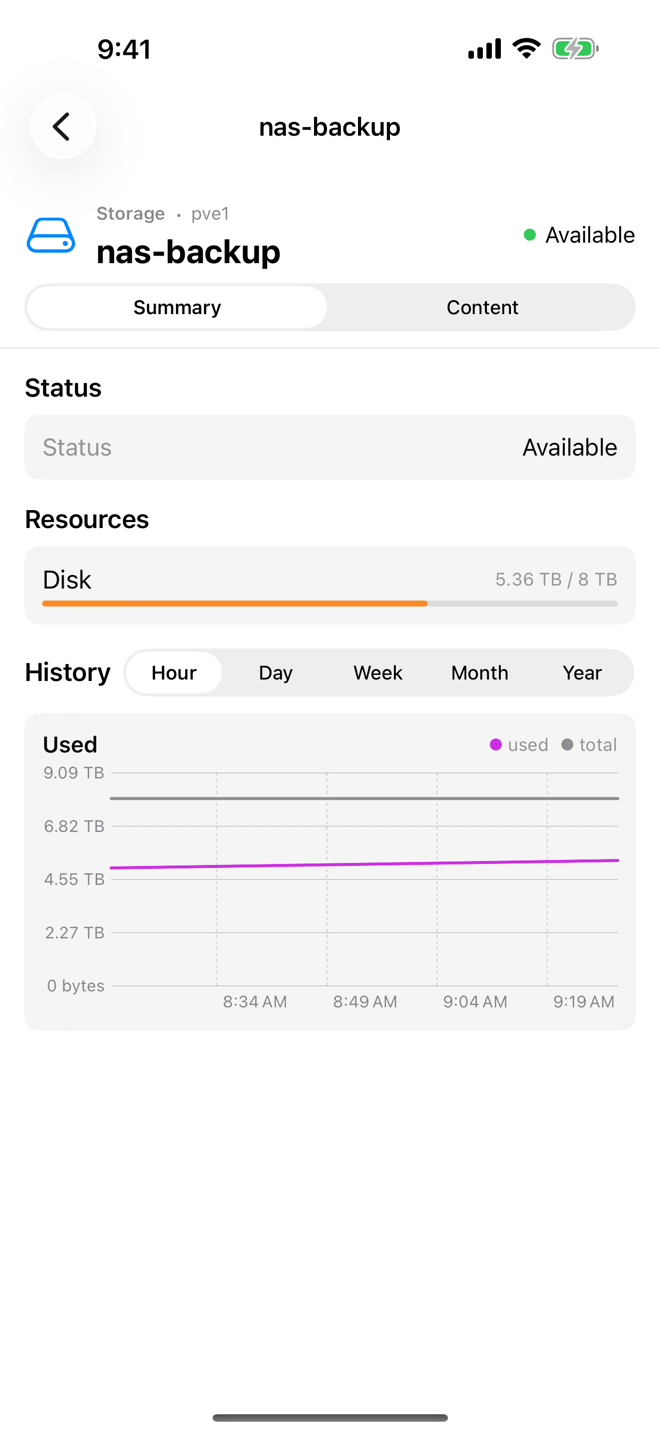
The Summary tab has three parts:
| Card | What it shows |
|---|---|
| Status | The storage's state as Proxmox reports it, for example available. |
| Resources | A Disk bar with the space used against the total size of the storage. |
| History | The Used chart: how much of the storage was in use over time. |
Look back in time
- Scroll to the History card.
- Choose a Timeframe: Hour, Day, Week, Month or Year.
- Read the Used chart. A steady climb usually means backups or disk images are growing faster than old ones are removed.
See History charts for how charts work across Aprox.
Refresh
- Pull down on the page to refresh (iPhone, iPad, Android).
- On the Mac, or an iPad with a keyboard, press ⌘R.
Aprox also refreshes by itself every few seconds while you look at the storage. Charts refresh at most once a minute.
Work with the content
Switch to the Content tab to browse what the storage holds and to manage it:
- Browse storage content and delete volumes.
- Download from a URL straight to the node.
- Upload a file from your device.
- Get container templates from the appliance catalog.
- Restore a backup.
Good to know
- With Aprox Pro, alerts can tell you when a storage passes 90% full.
- On iPad, Android tablets and the Mac, the storage page opens next to the sidebar.