Everything Proxmox does on your behalf, such as starting a guest, taking a backup or migrating a container, runs as a task with its own log. Aprox lists these tasks for the whole cluster, for each node and for each guest. You can filter for running or failed tasks, read a task's log while it is still running, and stop a task that should not finish. Viewing tasks and logs is free; stopping a task needs Aprox Pro.
Where to find it
- Whole cluster: Sidebar › server › Cluster Tasks.
- One node: Sidebar › node › Tasks.
- One guest: Sidebar › guest › Tasks.
- Proxmox Backup Server: Sidebar › Backup Server › Tasks, and a datastore's Tasks tab for the tasks of that datastore.
- From a dashboard: tap an entry under Failed Today on All Clusters or the Cluster Overview to open that task's log directly.
Filter the task list
- Open Cluster Tasks.
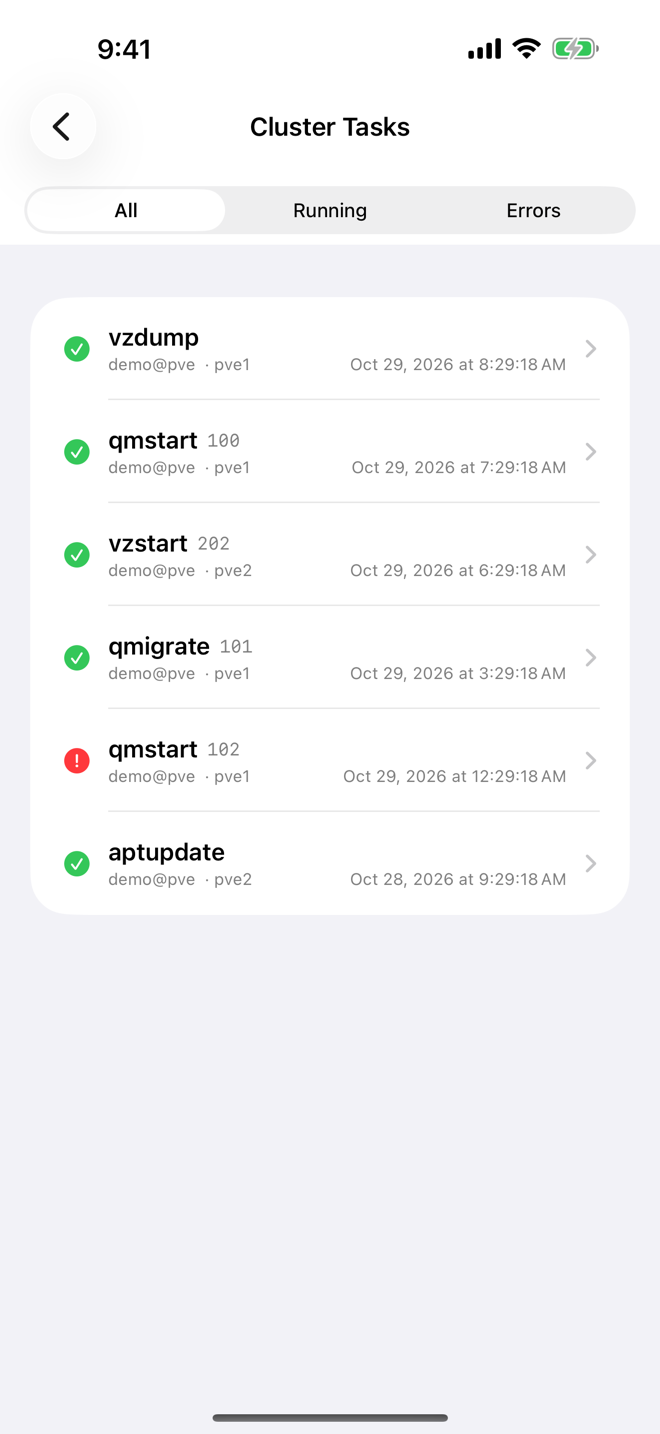
- Use Filter at the top to choose:
- All: every recent task;
- Running: tasks that are still in progress;
- Errors: tasks that have finished with an error.
- Pull down to refresh the list (iPhone, iPad, Android).
Each row shows:
- a status icon: blue while running, green when finished successfully, red when failed;
- the task type, for example
qmstart,vzdumporqmigrate, and the guest ID it concerns; - the user who started it and the node it ran on;
- when it started.
If the cluster has no recent tasks, the list says "No tasks yet".
The Tasks tab of a node or guest works the same way, without the filter, and also shows how long each task ran. Its empty state reads "No recent tasks".
Read a task's log
Tap a task in any task list.
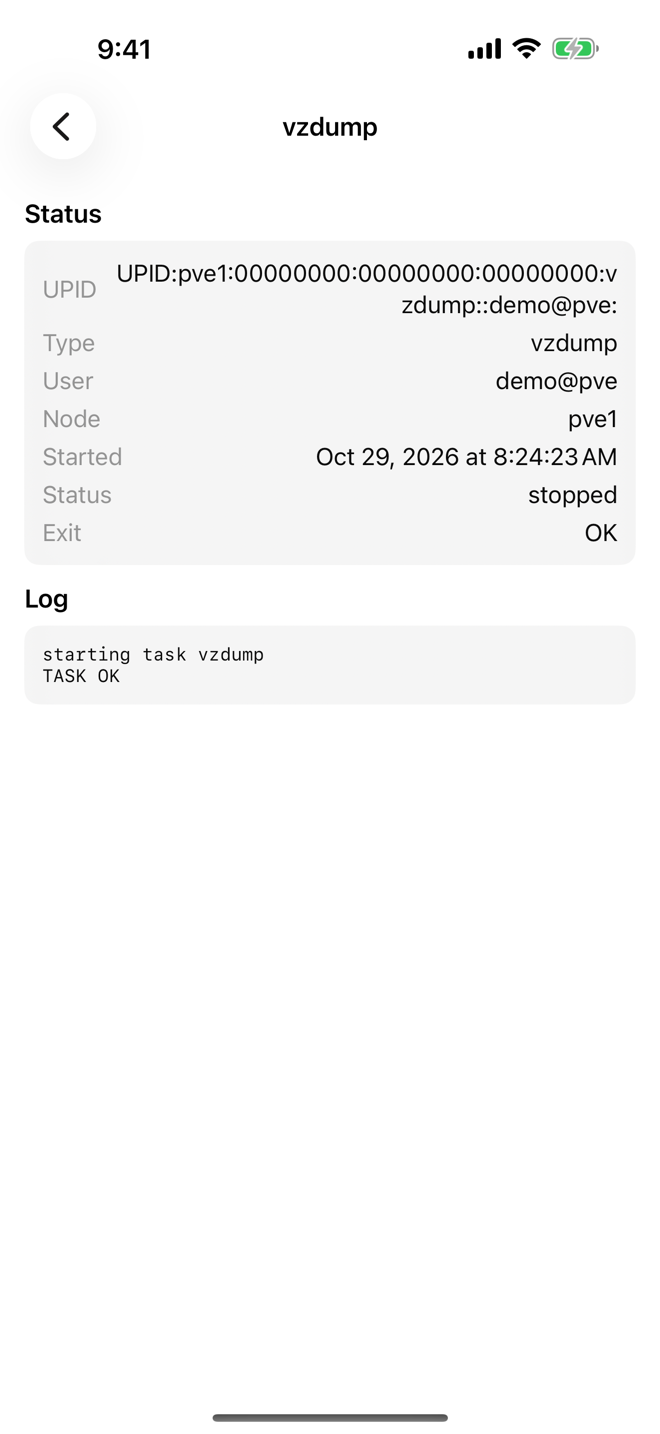
The Status card shows:
Field Meaning UPID Proxmox's unique task ID Type The kind of task, for example vzdumpResource The guest or object the task concerns User Who started it Node Where it runs Started When it started Status runningorstoppedExit The result once it has finished, for example OKor an error messageThe Log card shows the task's output. While the task runs, Aprox reloads the log every 2 seconds and scrolls to the newest line. On iPhone, iPad and Mac you can select and copy the text.
If the task wrote nothing, the log says "No log output".
Stop a running task
You can cancel a task that is still running, for example a backup started by mistake. This needs Aprox Pro and is available on iPhone, iPad and Mac.
- Open the running task.
- Tap Stop Task in the toolbar.
Proxmox cancels the task on the server, and its status changes to stopped. Stop Task only appears while the task is running. On the free plan it shows a lock; tapping it explains Aprox Pro.
Warning
Stopping a task interrupts it on the server at once; it does not finish its work. Stop a task only when you are sure.
Follow long tasks
Backups, clones, migrations, restores and destroys that you start in Aprox also show live progress, for example "17%", read from the task log:
- on iPhone, in a Live Activity on the Lock Screen and in the Dynamic Island;
- on Android, in a progress notification;
- on the watch, in its task list.
See Live Activities.
Requirements on the server
- Viewing tasks needs read access, typically
Sys.Auditon the nodes. - Stopping a task needs
Sys.Modifyon the node, unless you started the task yourself with the same user.
Good to know
- Task logs come straight from Proxmox and stay in English, whatever language Aprox uses.
- Stopping a task is not available on Android.