
All Clusters is the dashboard across all your servers. It adds up the capacity of every connected Proxmox VE cluster and lists everything that needs attention: offline nodes, tasks that failed today and storages that are filling up. Every entry leads to the server, task or cluster it names. The dashboard is free on every platform.
Where to find it
Sidebar › All Clusters, at the very top. The row appears as soon as you have added one server.
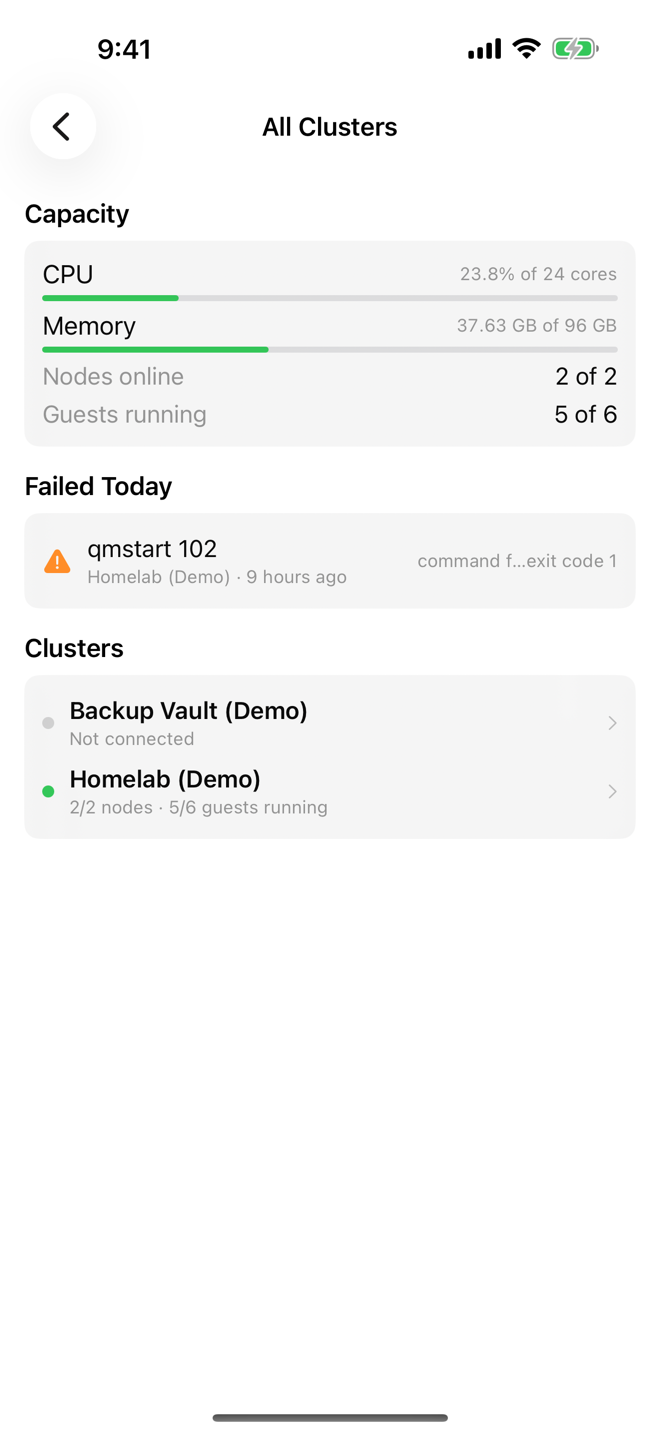
Read the dashboard
Capacity
The total across every signed-in Proxmox VE cluster:
| Row | Shows |
|---|---|
| CPU | CPU use as a percentage of all cores on the online nodes |
| Memory | Memory used of the total on the online nodes |
| Nodes online | Online nodes of all nodes, for example "3 of 4" |
| Guests running | Running guests of all guests |
Templates are not counted as guests. Backup Servers do not add to the capacity figures.
Status
When nothing needs attention, the Status card says Everything is up: "Every node is online, no task has failed in the last 24 hours, and no storage is above 85%." Every server must also be signed in.
Problem cards
When something needs attention, the Status card is replaced by one card per kind of problem. A card is only shown when it has entries.
| Card | Lists | Tap an entry to |
|---|---|---|
| Offline Nodes | Every node that is not online, with its cluster and status | Open that cluster's overview |
| Failed Today | Tasks that failed in the last 24 hours on any server, newest first, with the server and how long ago | Open the task's log in Cluster Tasks |
| Storage Filling Up | Storages and Backup Server datastores that are 85% full or more, fullest first, with used and total space | Open that server |
Tasks that finished with warnings, such as a backup that reports "OK (with warnings)", do not count as failed.
Clusters
The Clusters card has one line per server, sorted by name:
- a dot: green when all nodes are online, orange when a node is down, gray when the server is not connected;
- the server's name;
- for Proxmox VE: online nodes and running guests, for example "2/2 nodes · 5/7 guests running";
- for a Backup Server: "Backup Server · N datastores";
- "Not connected" when Aprox is not signed in to the server.
Tap a line to open that server's Cluster Overview, or the Overview of a Backup Server.
Refresh the dashboard
The dashboard is built from the data Aprox already loads for each server, so it updates as the servers refresh. To refresh all signed-in servers at once, pull down on the dashboard (iPhone, iPad, Android).
Good to know
- Servers you are not signed in to are listed as "Not connected" and are left out of the totals. Sign in to include them.
- The storage threshold on the dashboard (85%) is deliberately lower than the threshold for alerts (90%), so you see it here first. See Alerts and notifications.
- With no servers added, the dashboard says "Add a Proxmox server and it shows up here."