To manage a Proxmox VE cluster, you add it to Aprox once with its address and the account you want to use. You can add a single node or any node of a cluster; Aprox then shows the whole cluster. Adding servers is free, and you can add as many as you like.
Where to find it
- Sidebar toolbar › Add Server (+).
- In an empty sidebar: Add Server.
- On a Mac, or an iPad with a keyboard: press ⌘N, or choose File › Add Server….
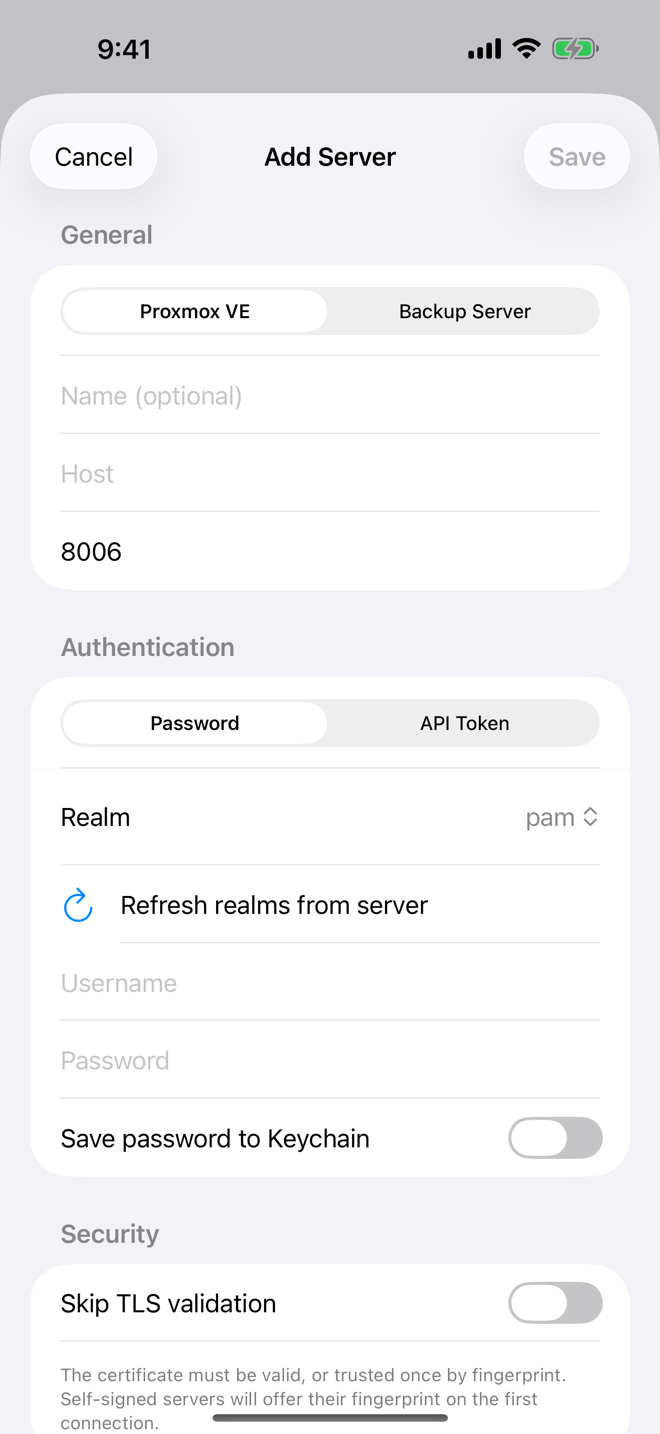
Add the server
- Open Add Server.
- Under General, set Type to Proxmox VE. Changing the type also sets the port to 8006.
- Optional: enter a Name (optional). This is the label in the sidebar, for example
Homelab. Without a name, the sidebar showshost:port. - Enter the Host: a host name or IP address, for example
pve1.example.comor192.168.1.10. You can also paste a full address such ashttps://pve.example.com:8006. When you leave the field, Aprox trims it to the host and moves the port into Port. - Check the Port. The default for Proxmox VE is 8006.
- Under Authentication, choose the Method: Password or API Token. See Sign-in methods and two-factor for the differences.
- Choose the Realm. Tap Refresh realms from server to load the realms the server offers, for example
pam(Linux PAM) orpve(Proxmox VE authentication). The default ispam. If the server uses a self-signed certificate, the certificate prompt appears right here. Compare the fingerprint and tap Trust This Certificate. See Self-signed certificates. - Enter the Username without the realm, for example
rootoradmin. - Enter the credentials:
- Password method: optionally enter the Password here and turn on Save password to Keychain. You can also leave the password empty and enter it when you sign in.
- API Token method: enter the Token name and the Token secret. The Token ID below shows the full ID as Proxmox knows it, for example
root@pam!aprox. See Create an API token.
- Under Security, leave Skip TLS validation off. Aprox offers the certificate's fingerprint on the first connection instead.
- Tap Save.
Fields at a glance
| Field | What to enter |
|---|---|
| Type | Proxmox VE for a cluster or node, Backup Server for a Proxmox Backup Server |
| Name (optional) | Label in the sidebar |
| Host | Host name or IP address; a pasted URL is trimmed to its host |
| Port | 8006 for Proxmox VE |
| Method | Password or API Token |
| Realm | The authentication realm, such as pam, pve, LDAP, Active Directory or OpenID |
| Username | The user name without @realm |
| Password / Save password to Keychain | Password method only |
| Token name / Token secret | API Token method only |
| Skip TLS validation | Leave off; see Self-signed certificates |
Sign in for the first time
- Tap the server in the sidebar. It expands. With a saved password or token secret, Aprox signs in right away and you can skip the next steps. Otherwise the server shows a Sign in row.
- Tap Sign in ("Tap to log in"). The sign-in screen opens.
- Sign in:
- Password: enter the Password, decide on Save password to Keychain, and tap Login.
- API Token: if you entered the secret when you added the server, Aprox connects at once. Otherwise enter the Token secret and tap Connect.
- If the certificate is not trusted yet, compare the fingerprint and tap Trust This Certificate.
- If your account uses two-factor authentication, choose the method, enter the Code and tap Verify.
Once you are signed in, the server shows a green dot. Its expanded section lists Cluster Overview, the nodes, guests and storages, Cluster Tasks and Backup Jobs. The detail pane opens the Cluster Overview.
Tip
Turn on Save password to Keychain if you want Aprox to sign in by itself at launch, and if you plan to use alerts, widgets, Siri and Shortcuts or the watch app. Aprox stores the password on this device only, and only after the server accepted it.
On Android
The steps and labels are the same. The sheet is titled Add Server (or Edit Server), with Save and Cancel. Under Host, the hint reads "Name or IP address. A pasted address is trimmed to its host." The password option is also called Save password to Keychain; Android keeps the password in encrypted storage on the device.
Good to know
- A server reachable only through a VPN needs the VPN connected first.
- A server on your local network needs the local network permission. See Local network access.
- Aprox only connects over HTTPS.