The Hardware tab of a container brings together what the Proxmox web UI spreads over Resources, Network, DNS and Options: identity and boot settings, CPU and memory, the root disk and mount points, network interfaces, container features and DNS. With Aprox Pro you can change all of it, add mount points and network interfaces, and review or revert changes that Proxmox has queued. Viewing is free.
Where to find it
Sidebar › postgres › Hardware.
On the free plan the tab shows the banner Read-only — Aprox Pro unlocks editing. with Unlock. Tapping a row or Add opens an overview of Aprox Pro.
For virtual machines, see Virtual machine hardware.
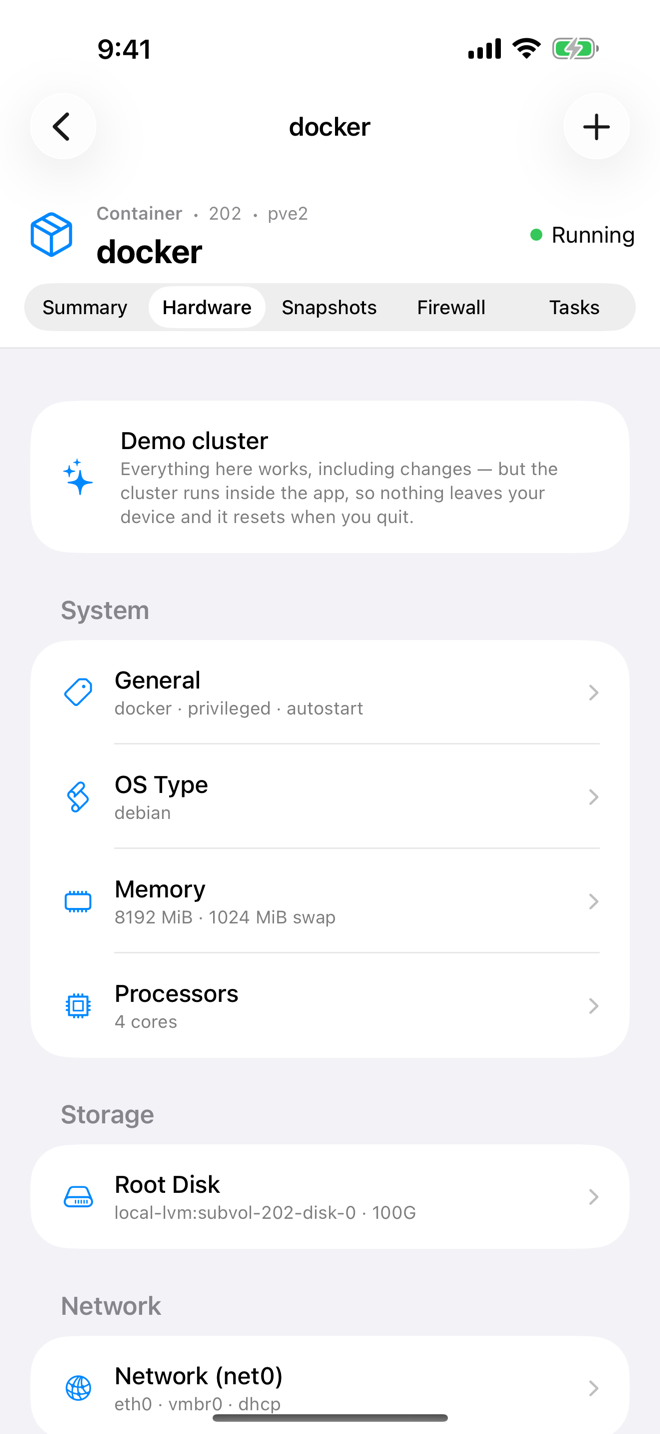
Edit an item
- Tap the row to open its editor.
- Change the values.
- Tap Save.
If Proxmox can apply the change to the running container, it does so at once. Otherwise it queues it under Pending changes (see below). If Proxmox refuses, the editor stays open and shows why.
The editors and their fields:
General
| Section | Fields |
|---|---|
| Identity | Hostname, Tags (separated by semicolons, for example db;production), Description (the container's notes) |
| Boot | Start at boot (start the container when the node boots), Startup order (optional Proxmox startup setting, for example order=2,up=30 for the start order and a delay in seconds) |
| Security | Unprivileged container, Protection (prevents the container and its disks from being removed until you turn it off) |
OS Type
The operating system type Proxmox records for the container. Proxmox uses it to set up the container correctly when it starts.
Processors
- Cores: how many CPU cores the container may use; empty means all of the node's cores.
- CPU limit: total CPU time the container may use, in cores ("0 = unlimited").
- CPU units: the container's share of CPU time relative to other guests.
Memory
- Memory (MiB): the memory limit.
- Swap (MiB): additional swap the container may use.
Root disk and mount points
The Root Disk row is the container's root file system. Mount points (mp0, mp1, …) add more volumes inside the container.
| Section | Fields |
|---|---|
| Slot | Index, for a new mount point |
| Storage | For a new mount point: the storage and Size (GiB). For an existing one: its Volume and Size, read-only. |
| Mount | Path: where the volume appears inside the container, for example /data. Not shown for the root disk. |
| Options | Include in backup, Read-only, User quotas |
Network interface
| Section | Fields |
|---|---|
| Slot | Index and Name (the interface name inside the container, for example eth0) |
| Bridge | The bridge (for example vmbr0), VLAN tag, Firewall (lets the guest firewall filter this interface), MAC (leave auto to have Proxmox generate one), MTU |
| IPv4 | Mode: DHCP, Static or None. With Static, enter the address in CIDR form (for example 192.168.1.10/24) and the Gateway. |
| IPv6 | Mode: SLAAC, DHCP, Static or None. With Static, enter the address (for example 2001:db8::1/64) and the Gateway. |
Features
| Field | Meaning |
|---|---|
| Nesting | Allows containers inside this container. Needed to run Docker in it, and by many recent Linux distributions. |
| FUSE | Allows FUSE file systems inside the container. |
| keyctl | Allows the keyctl system call, which some software such as Docker in unprivileged containers needs. |
| force_rw_sys | Mounts /sys writable in unprivileged containers. |
| Mount filesystems › Allowed types | File system types the container may mount itself, separated by semicolons, for example nfs;cifs. |
DNS
- Nameservers: one or more DNS servers, for example
1.1.1.1 8.8.8.8. Leave empty to use the node's settings. - Search domain: for example
example.com.
Add a mount point or network interface
- Tap Add (+).
- Choose Mount Point or Network Interface.
- Fill in the editor (Add Mount Point or Add Network Interface). Aprox suggests the next free slot.
- Tap Save.
Remove or detach hardware
Swipe left on a row (Android: open the row's menu) and choose the action:
| Row | Action | What happens |
|---|---|---|
| Mount point | Detach | The mount point is removed from the container. Its volume keeps its data and appears as a Detached Volume (unused0, …). |
| Detached Volume | Delete | Confirm Delete … › Delete forever. "This will purge the underlying volume from storage and cannot be undone." |
| Network interface and other removable rows | Remove | The item is removed from the configuration. |
You can also tap a Detached Volume row to see its volume and tap Permanently delete: "Proxmox frees the underlying volume when this entry is removed. This cannot be undone."
The root disk cannot be removed.
Warning
Deleting a detached volume erases its data from the storage. There is no undo.
Review and revert pending changes
Some changes cannot be applied to a running container. Proxmox queues them.
- A Pending changes section appears at the top of the tab. Each line names the configuration key and shows the change, for example
2048 → 4096. - Tap Revert on a line to undo that change, or Revert all pending changes to undo all of them.
- To apply them, shut the container down and start it again. The footer says: "These apply the next time the container is stopped and started."
Rows with a queued change carry a Pending reboot, Pending add or Removal pending badge.
Requirements on the server
Editing typically needs the VM.Config.* privileges on the container (for example VM.Config.Disk, VM.Config.Memory, VM.Config.CPU, VM.Config.Network, VM.Config.Options). New mount points also need Datastore.AllocateSpace on the storage.
Good to know
- Someone else edited the container. If the configuration changed on the server since Aprox loaded it, Proxmox refuses with "The configuration changed on the server, so nothing was applied." Pull to refresh and make the change again.
- No disk resize. Container volumes cannot be resized in Aprox. Use the Proxmox web UI, or
pct resizeon the node. - Network settings take effect inside the container. Proxmox writes them into the container's own network configuration, so a static address set here is what the container uses.