A remote is a stored connection from one Proxmox Backup Server to another. Sync jobs use remotes to pull backups from another server or push them to it, for example to keep an off-site copy. Aprox lists the remotes of each Backup Server and lets you add, edit and delete them. Changing remotes needs Aprox Pro.
Where to find it
Sidebar › your Backup Server › Remotes.
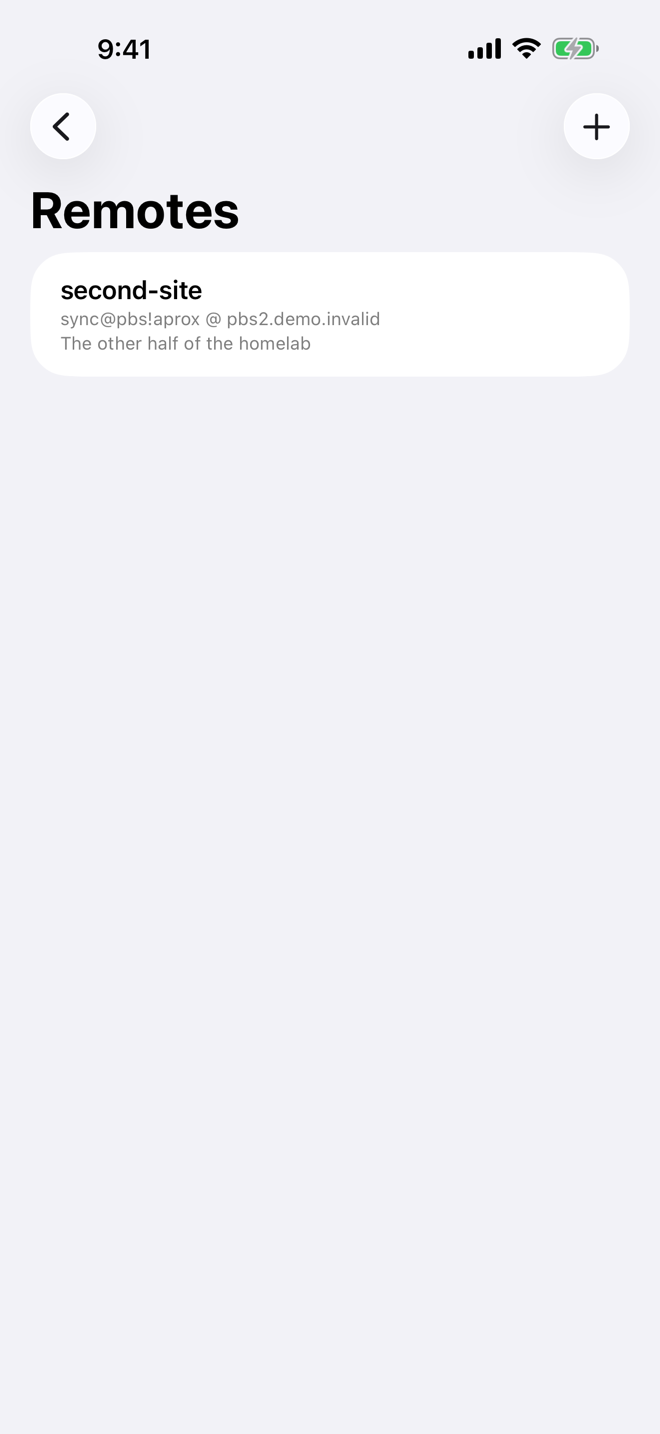
Each row shows the remote's ID, the account and address it connects with, and its comment. If the server has none, the list reads "No remotes. Add one to sync backups from or to another Backup Server."
Add a remote
Needs Aprox Pro.
Tap Add Remote. The New Remote sheet opens.
Fill in the fields:
Field What to enter Remote ID A name for the connection, for example offsite. Sync jobs refer to it by this name.Host The host name or IP address of the other Backup Server. Port (default 8007) The other server's port. Leave it empty to use the standard port 8007. Comment Optional description. Authentication The account on the other server, as user@realmor, for an API token,user@realm!token, and its Password or Token Secret.Fingerprint The SHA-256 fingerprint of the other server's certificate. Needed unless that certificate is trusted by this server, for example because it comes from a public certificate authority. Tap Save. Aprox shows Saving… and then Saved.
Note
The password or token secret is stored on the Backup Server, which uses it when it connects to the remote. It is never shown again, not even in Aprox.
Where to find the fingerprint
On the other Backup Server, open the web UI's dashboard and choose Show Fingerprint, or look at its certificate in Aprox under Sidebar › that server › System › Certificate › Fingerprint. See Backup Server system and tasks.
Which account to use
For a pull sync, the remote account needs read access to the datastore you pull from, for example the role DatastoreReader. For a push sync, it needs to be allowed to write backups there, for example DatastoreBackup. An API token is a good choice because you can limit it to exactly that. See Users, API tokens and permissions.
Edit a remote
Needs Aprox Pro.
- Tap the remote. On iPhone, iPad and Mac you can also long-press or right-click it and choose Edit…. The Edit Remote sheet opens.
- Change what you need. Leave Password or Token Secret (unchanged) empty to keep the stored secret.
- Tap Save.
Delete a remote
Needs Aprox Pro.
- Open the remote's actions: on iPhone, iPad and Mac, swipe the row and tap Delete, or long-press or right-click it and choose Delete…. On Android, use the remote's Delete… action.
- Confirm "Delete remote <name>?" with Delete Remote.
Only the connection settings are removed; no backups are touched. A remote that a sync job still uses cannot be deleted. Delete or change that sync job first.
Use the remote
Create a sync job on a datastore and choose the remote under Remote. See Prune, verify and sync jobs.
Requirements on the server
Managing remotes needs the matching privilege on the Backup Server you are signed in to, for example Remote.Modify. If it is missing, Aprox explains what was refused.