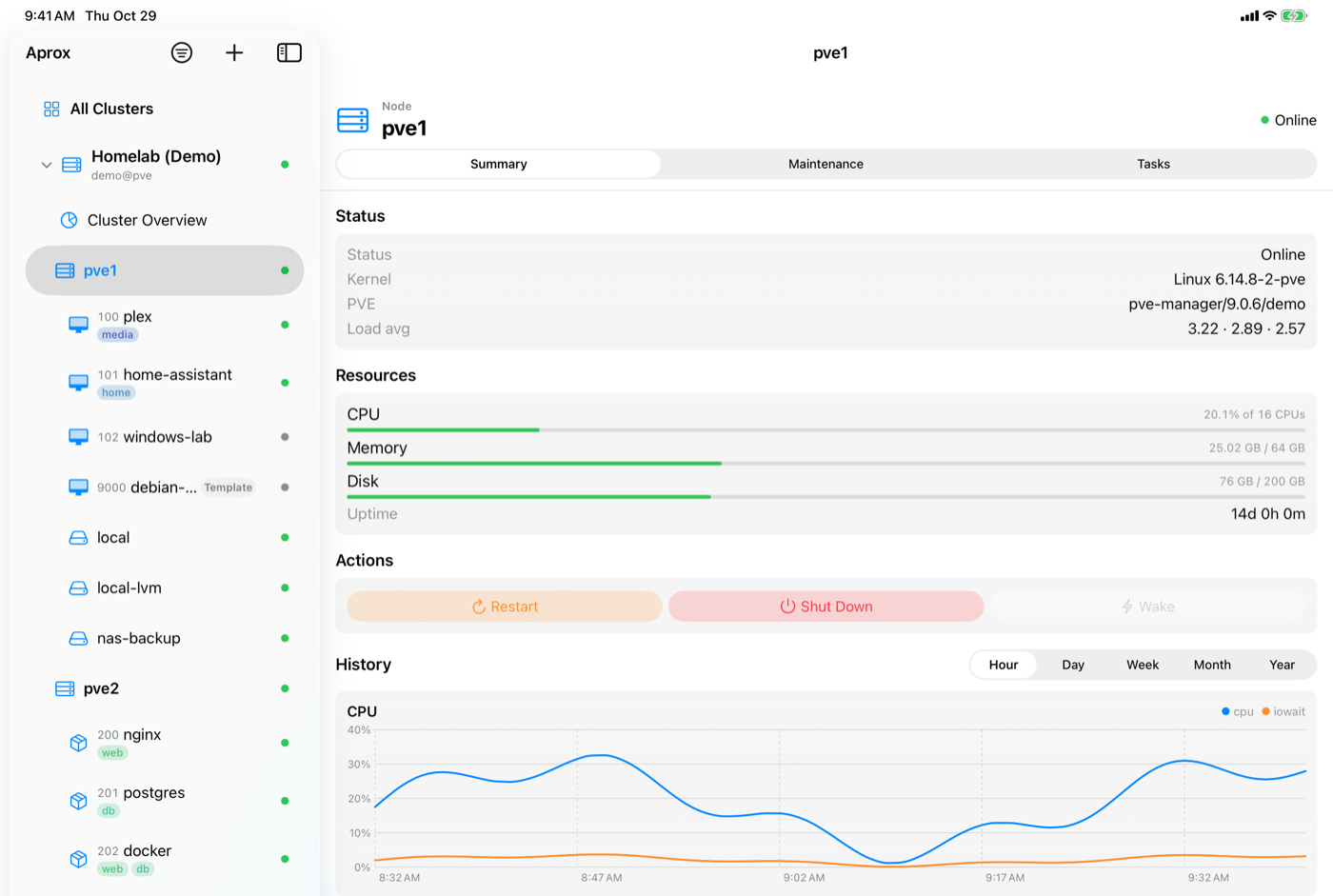
Aprox is organized like a mail app: a sidebar lists your servers and everything in them, and a detail pane shows what you selected. This article explains the layout on each device, how to find a guest quickly, the context menus, the tabs of the detail pane and how Aprox keeps the data current.
Layout on each device
- iPhone and Android phones: the sidebar is the start screen. Tap a row to open its details; go back to return to the sidebar.
- iPad, Android tablets and Mac: the sidebar and the detail pane sit side by side.
- On iPad in landscape, the sidebar stays next to the detail pane instead of covering it.
- With a pointer, rows and dashboard cards highlight as you hover over them.
- Mac:
- Aprox uses native Mac windows. If no window is open, File › Add Server… (⌘N) opens one.
- Settings open in their own window: Aprox › Settings… (⌘,). There is no Settings row in the sidebar.
- Consoles open in their own windows.
- Aprox keeps running after you close its last window, so the menu bar extra can keep showing your cluster status. See Aprox on the Mac.
The sidebar
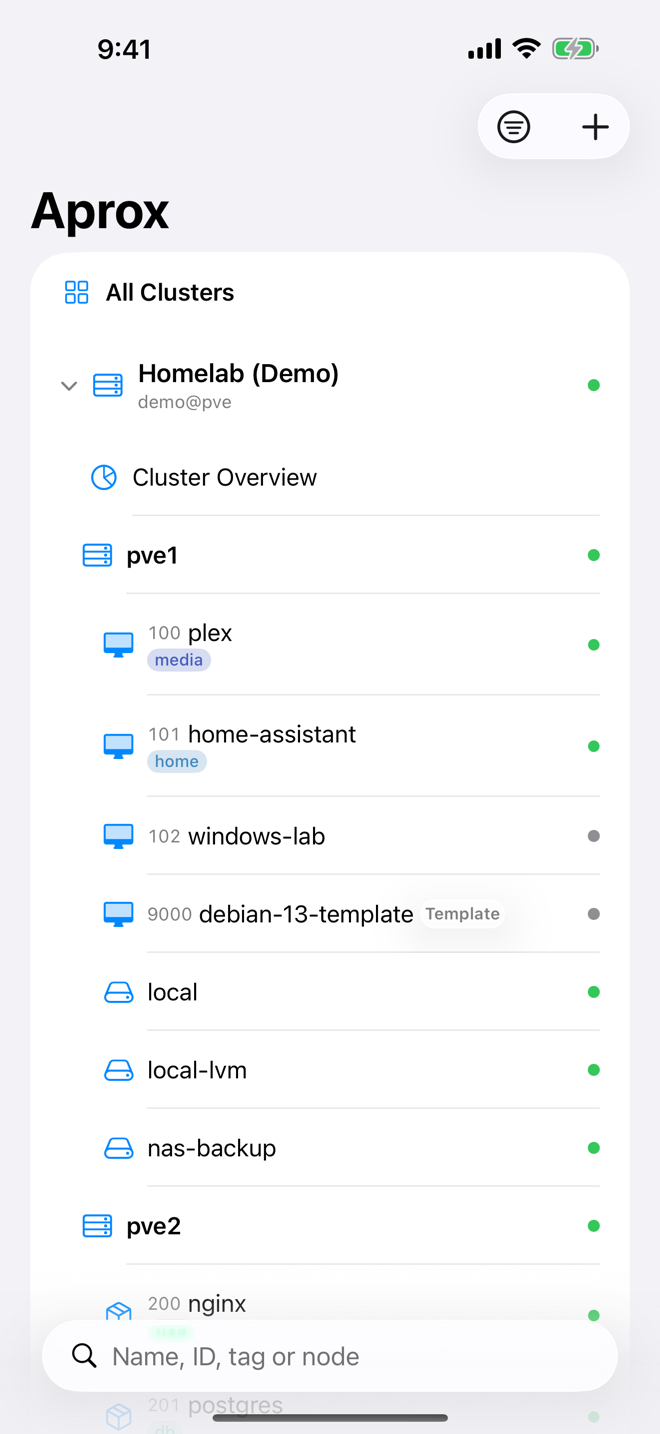
From top to bottom, the sidebar shows:
- All Clusters: the dashboard across all your servers. It appears as soon as you have added one server. See All Clusters.
- One row per server, with its icon, its name, the account (
user@realm) and a state indicator. Tap the row to expand it and sign in. - Settings (iPhone, iPad and Android).
A signed-in Proxmox VE server
When expanded, a Proxmox VE server lists:
- Cluster Overview: the cluster's dashboard. See Cluster Overview.
- Its nodes, guests and storages, grouped as set under Group By (see below).
- Cluster Tasks: see Tasks and logs.
- Backup Jobs: see Backup jobs.
A signed-in Backup Server
When expanded, a Backup Server lists Overview, Datastores (one row each), Tasks, Remotes, Access Control and System. A datastore row is marked Needs attention when something is wrong. See Backup Server overview.
Resource rows
Each node, guest and storage row shows:
- the VMID (for guests) and the name;
- a Template badge for templates;
- an orange "locked: <reason>" line while the guest is locked, for example during a backup;
- up to three colored tag chips, with "+N" for further tags (the tag colors are the same on every device);
- a status dot.
Under Group By › Tag, the rows leave out the tag chips, because the group heading already names the tag.
Group the sidebar
You can group the guests of each cluster by node, pool or tag.
- iPhone, iPad and Mac: sidebar toolbar › Group By.
- Android: sidebar toolbar › Group By, or Settings › Sidebar.
| Option | How guests are grouped |
|---|---|
| Node (default) | Under the node they run on. Each node heading is itself a row you can select. Storages are listed under their node. |
| Pool | Under their resource pool. Guests without a pool are listed under No Pool. |
| Tag | Under each of their tags. A guest with several tags appears under each one. Guests without tags are listed under Untagged. |
With Pool or Tag, nodes and storages are collected in a group of their own, Nodes and Storage, at the end.
Search
- Type in the search field ("Name, ID, tag or node") at the top of the sidebar.
- Aprox searches every server at once. It matches the name, the VMID, the node, the pool and the tags.
- Tap a result to open it.
While you type, every server is expanded so you can see all matches. A server without a match shows "No matches in <server>". When you clear the field, the sidebar returns to the servers you had expanded before.
Use context menus
Long-press a row (iPhone, iPad, Android) or right-click it (Mac) for its context menu.
Guest
- Start, Shut Down, Reboot, Stop.
- More Power Actions › Pause, Resume, Hibernate, Reset (virtual machines only).
- Back Up Now…, Clone…, Migrate…, Convert to Template…, Destroy….
- On the Mac, Open Console at the top.
Actions that do not fit the guest's current state are grayed out. Power actions are free. On the free plan, the actions that need Aprox Pro show "(Pro)" and a lock, for example Clone (Pro). See Power actions.
Node
- Restart Node, Shut Down Node, Wake Node. See Restart, shut down and wake a node.
Server
- Create VM and Create Container (signed-in Proxmox VE servers, Aprox Pro; Android: Create Virtual Machine and Create Container).
- Edit, Logout, Delete. See Edit, sign out or remove a server.
The detail pane
The top of the detail pane shows the type, VMID, node, name and live status of what you selected. Below it, a tab bar switches between the views. On Android the tabs scroll sideways.
| Selected item | Tabs |
|---|---|
| Node | Summary, Console, Maintenance, Tasks |
| Virtual machine or container | Summary, Console, Hardware, Snapshots, Firewall, Tasks |
| Template | The same, without Snapshots |
| Storage | Summary, Content |
| Pool, SDN zone, network | Summary |
- On the Mac, there is no Console tab. Use Open Console in the toolbar (⇧⌘K) to open the console in its own window.
- On the free plan, the Console tab shows a lock. The console needs Aprox Pro.
- The demo cluster has no Console tab.
- On a Mac, or an iPad with a keyboard, ⌘1 to ⌘9 switch between the tabs.
Refresh
Aprox keeps the data current by itself:
- the resource you are looking at refreshes every 3 seconds;
- everything else refreshes every 10 seconds;
- history charts refresh at most once a minute.
To refresh at once, pull down on a list or dashboard (iPhone, iPad, Android), or press ⌘R (Mac, iPad with a keyboard).
Read the state indicators
Each server row shows its connection state:
| Indicator | Meaning |
|---|---|
| Green dot | Connected |
| Spinner | Connecting |
| Orange key | Two-factor code required |
| Orange lock | Certificate not trusted |
| Red triangle | Connection failed |
| Gray dot | Not connected |
A server that is not signed in shows a row that says what to do: Sign in, Enter TFA code, Certificate not trusted or Sign-in failed. See Sign-in methods and two-factor.
Recognize Pro features
On the free plan, features that need Aprox Pro are marked:
- a lock icon on a button or tab;
- "(Pro)" in menus;
- a Read-only banner with Unlock on screens you can browse but not change;
- Unlock with Aprox Pro on the Console tab.
Tapping any of them explains the feature and shows the Aprox Pro plans. See Aprox Pro.