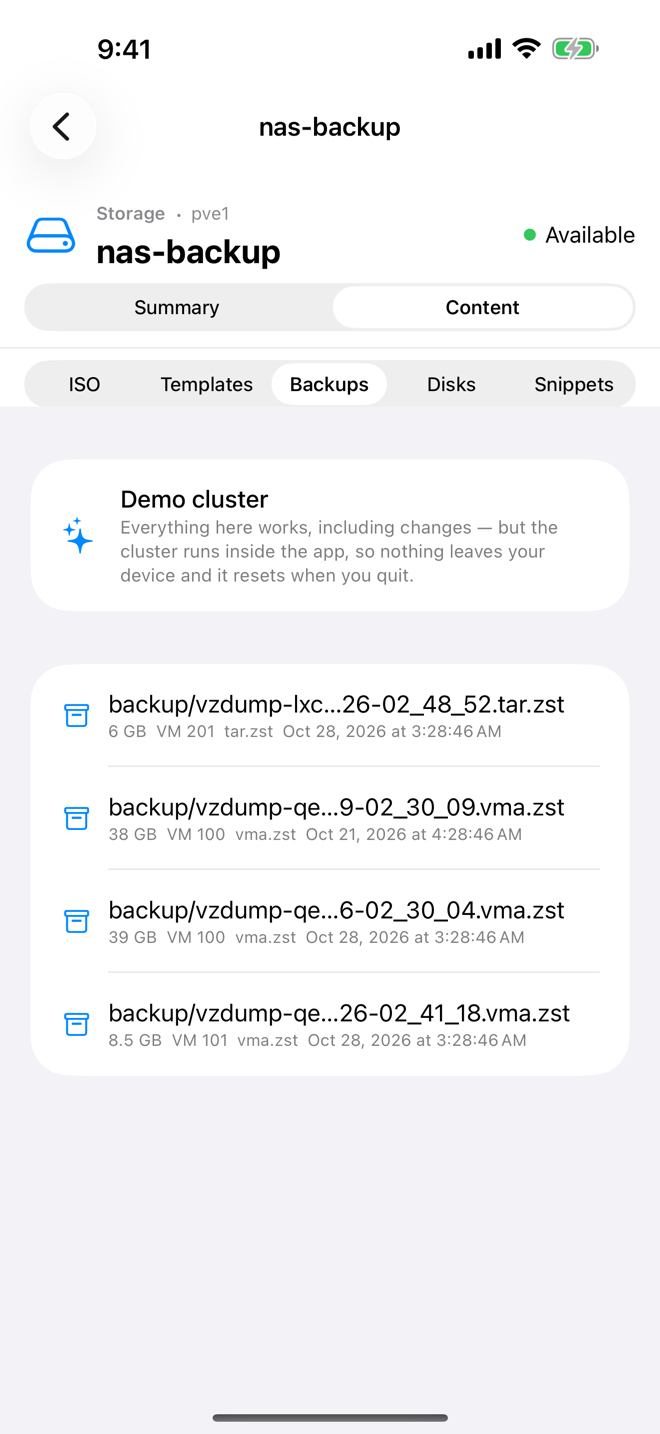
Backups of your guests are listed on the storage they were written to, for example nas-backup. From there you can restore one, either as a new guest with a new ID or over the existing guest it came from. Aprox shows the restore's progress while you do something else. Restoring needs Aprox Pro.
Where to find it
- Sidebar › your server › backup storage (for example nas-backup) › Content › Backups.
- Open the actions of the backup you want:
- iPhone, iPad and Mac: swipe the row to the left.
- Android: tap the menu button (three dots) at the end of the row.
- Choose Restore.
Restore a backup
- Open Restore as described above. The Restore Backup sheet opens (Android: Restore backup).
- Under Backup, check what you are about to restore:
- Archive: the backup file.
- Size: its size.
- Type (Android: Contents): Virtual Machine or Container.
- Under Target, set the Target ID. Aprox suggests the ID the backup was taken from, for example
100for a backup of guest 100. If it cannot read an ID from the backup, it suggests the next free ID in the cluster. - Check the Node (Android: Target node). The guest is restored on the node you opened the storage under.
- Under Options, choose what you need (see below).
- Tap Restore. Aprox shows Starting restore…, then closes the sheet.
The restore runs as a task on the node. Aprox follows it with a Live Activity on iPhone, or a progress notification on Android, until it has finished or failed. You can also watch it in the node's or the cluster's task list.
Restore options
| Option | Default | What it does |
|---|---|---|
| Overwrite if target exists | Off | Replaces an existing guest with the target ID, including its disks. Without it, the restore fails if the ID is taken. |
| Generate new MAC addresses | Off | Gives the restored guest's network cards new MAC addresses. Use it when the original guest is still running on the same network. |
| Start after restore | Off | Starts the guest as soon as the restore has finished. |
Warning
Overwrite if target exists replaces the current guest with that ID, and its disks, with the contents of the backup. Check the Target ID carefully.
Restore as a copy
To bring back an old state next to the running guest, for example to recover a single file:
- Change the Target ID to a free ID, for example
150. - Turn on Generate new MAC addresses.
- Leave Start after restore off if the copy would clash with the original, for example because both use the same fixed IP address.
Requirements on the server
Your account typically needs VM.Backup and VM.Allocate for the target ID and Datastore.AllocateSpace on the storages the guest's disks are restored to. If a right is missing, Aprox names the path and the privilege it needs.
Good to know
- The Restore button stays disabled until the target ID is 100 or higher.
- Aprox restores backup archives that Proxmox VE wrote to a storage (
vzdumpfiles). For other entries, such as backups on a Proxmox Backup Server storage, the type reads Unknown and Restore stays disabled. Restore those in the Proxmox web UI. - Aprox does not ask for a target storage. Proxmox restores the disks to the storages recorded in the backup. To restore to a different storage, use the Proxmox web UI.
- Restore is not available in the demo.
- To make a new backup first, use Back up now. To see your scheduled backups, open Backup jobs.