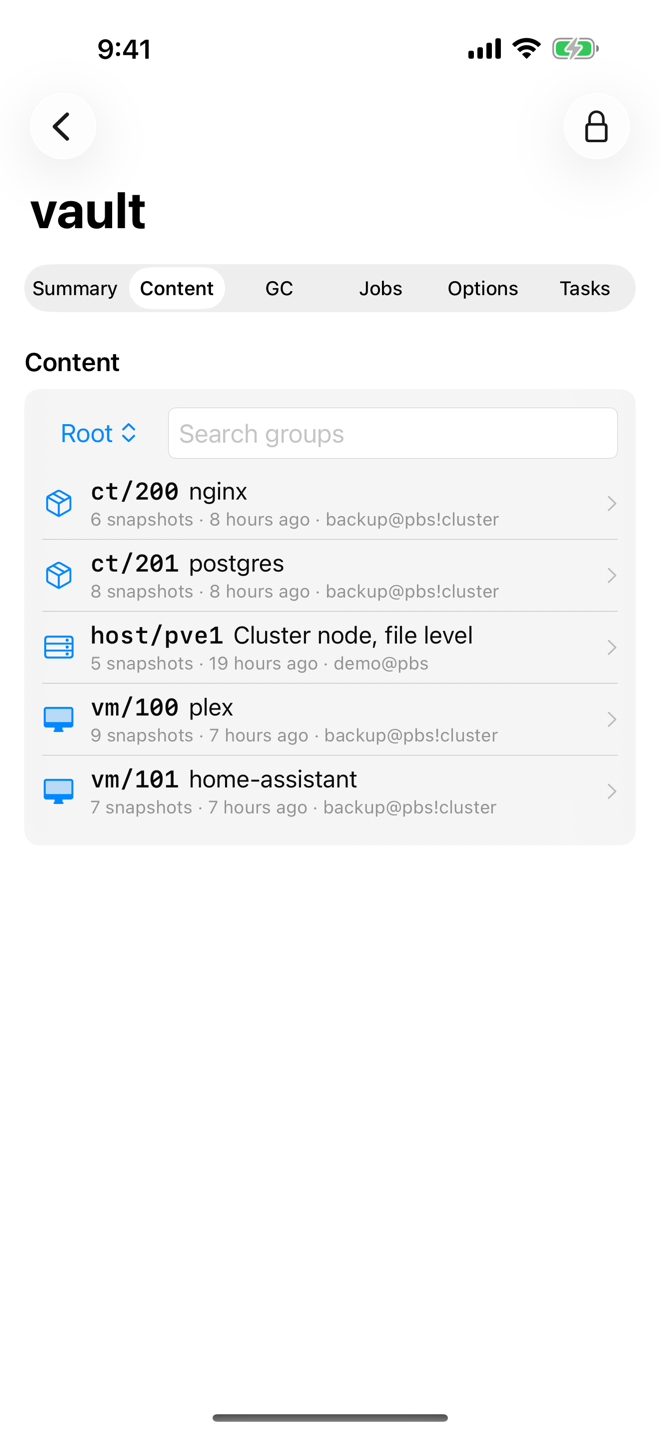
The Content tab of a datastore shows every backup on it, organized the way Proxmox Backup Server stores them: namespaces contain backup groups (one per guest or host, for example vm/100), and each group contains snapshots (one per backup run). You can inspect every snapshot for free. Verifying, pruning, protecting, editing notes, changing the owner and removing backups need Aprox Pro.
Where to find it
Sidebar › your Backup Server › Datastores › the datastore › Content.
Browse backups
- Open the Content tab.
- If the datastore has namespaces, choose one with the Namespace picker. Root is the top level; sub-namespaces are indented below it. The picker appears only when there is more than one namespace.
- Optional: type in Search groups to filter the list, for example
100orvm. - Read the group rows. Each shows the group path, such as
vm/100orct/101, its comment and a short summary. - Tap a group. Its snapshots open in a sheet. Close it with Done.
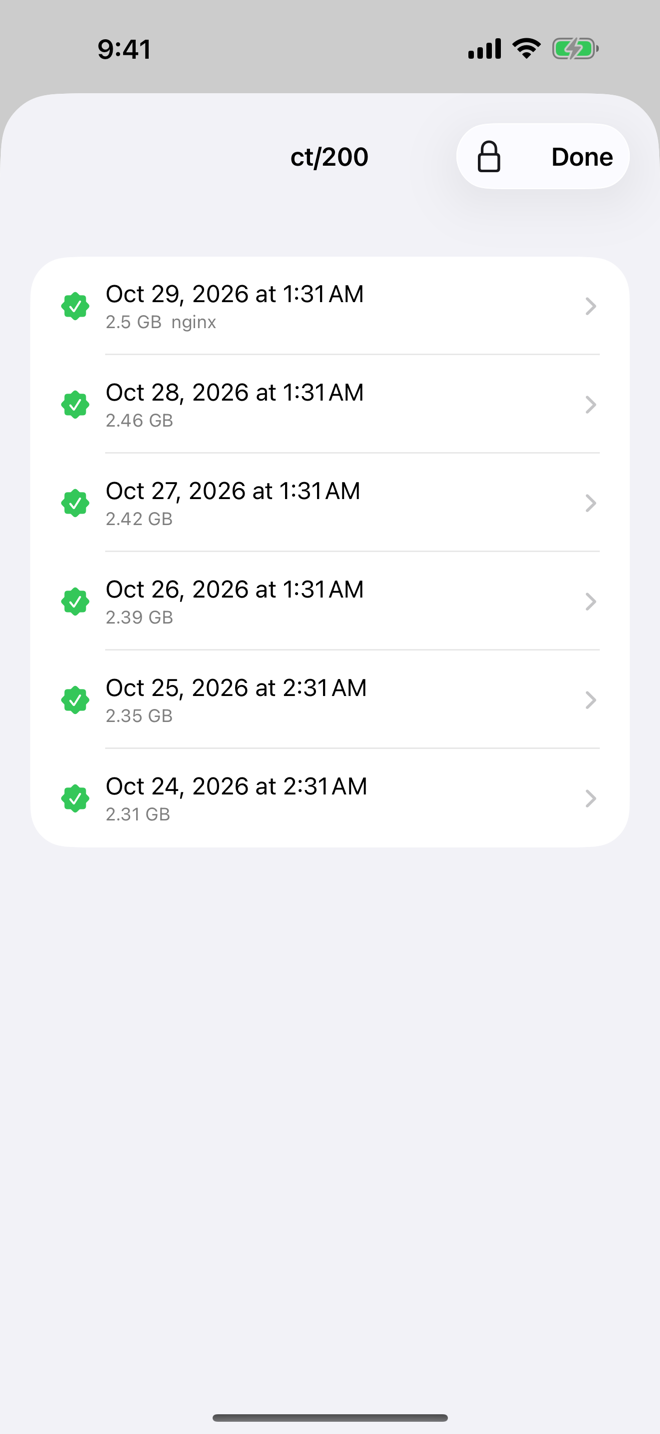
- Tap a snapshot to see its details.
If a namespace is empty, the list reads "No backups in this namespace." If your search matches nothing, it reads "No groups match." A group without snapshots shows "This group has no snapshots."
Snapshot badges
| Badge | Meaning |
|---|---|
| Encrypted | The backup was encrypted on the client. |
| Protected | The snapshot cannot be pruned or removed until you unprotect it. |
| Verified | The last verification passed. |
| Verification failed | The last verification found damaged or missing data. |
| Not verified | The snapshot has never been verified. |
Snapshot details
| Field | Meaning |
|---|---|
| Backup Time | When the backup was taken. |
| Size | The size of the backup. |
| Owner | The user or token that owns the group. |
| Verification | The result of the last verification. |
| Protected | Shown when the snapshot is protected. |
| Namespace | The namespace it lives in. |
| Key Fingerprint | The fingerprint of the encryption key, for encrypted backups. |
| Notes | The snapshot's notes. |
| Files | The archives inside the snapshot, such as disk images and the configuration. |
Verify a group
Needs Aprox Pro.
- Open the group.
- Tap Actions › Verify Group.
- Aprox shows "Verifying <group>…" and then Verified. when the task has finished.
Every snapshot in the group is read and checked. The badges update afterward.
Prune a group
Pruning removes old snapshots according to a retention policy. Aprox always shows you what would be removed before anything happens. Needs Aprox Pro.
Open the group.
Tap Actions › Prune…. The sheet "Prune <group>" opens.
Under Retention, set how many snapshots to keep with the steppers:
Option Keeps Keep Last the newest N snapshots Keep Hourly the newest snapshot of each of the last N hours that have one Keep Daily the newest snapshot of each of the last N days that have one Keep Weekly the newest snapshot of each of the last N weeks that have one Keep Monthly the newest snapshot of each of the last N months that have one Keep Yearly the newest snapshot of each of the last N years that have one The values start from the datastore's own retention policy, if it has one. With nothing set, every snapshot is kept.
Check the Preview. It lists each snapshot as keep (green check) or remove (red, struck through) and sums it up: "Keeps N, removes M." Protected snapshots carry a lock and are always kept. The preview updates every time you change a value, and Prune stays disabled until it is current.
Tap Prune.
Confirm "Remove M snapshots from <group>?" with Remove M Snapshots. "This cannot be undone. Protected snapshots are kept."
Aprox shows Pruning… and then Pruned. The data is freed on disk by the next garbage collection.
Tip
To prune on a schedule, create a prune job with the same policy. Trying the policy on one group first with Prune… shows you exactly what the job would do. See Prune, verify and sync jobs.
Change the owner of a group
The owner is the user or token that may back up to this group and prune it without wider rights on the datastore. Changing it is useful when you switch a Proxmox VE cluster to a new Backup Server user or token. Needs Aprox Pro.
- Open the group.
- Tap Actions › Change Owner….
- Read the Current Owner.
- Enter the new owner as
user@realmor, for an API token,user@realm!token. - Tap Save. Aprox shows Owner changed.
Remove a group
Needs Aprox Pro.
- Open the group.
- Tap Actions › Remove Group….
- Read the warning: every snapshot in the group will be deleted. Protected snapshots are kept, and then the group stays.
- Type the group path to confirm, for example
vm/100("Type <group> to confirm"). - Tap Remove Group.
Warning
Removing a group deletes every unprotected snapshot in it. This cannot be undone.
Work with a single snapshot
Open the snapshot and tap Actions. All of these need Aprox Pro.
| Action | What it does |
|---|---|
| Verify Snapshot | Reads and checks this one snapshot. Shows Verifying…, then Verified. |
| Protect / Unprotect | Protects the snapshot from pruning and removal, or lifts the protection. Shows Protected. or No longer protected. |
| Edit Notes… | Opens the notes. The first line is shown in the snapshot list. Tap Save. |
| Remove… | Asks "Remove this snapshot?". Tap Remove Snapshot to delete it. |
Requirements on the server
Typically, browsing needs Datastore.Audit or Datastore.Backup, pruning and removal need Datastore.Prune or Datastore.Modify, and verification needs Datastore.Verify. A group's owner may prune its own group without wider rights.
Good to know
- A datastore can hold thousands of groups. Use Search groups to find one quickly.
- Restoring a guest from a Backup Server snapshot is done in Proxmox VE, not on the Backup Server. Use the Proxmox VE web UI for that.