Every node in your Proxmox VE cluster, such as pve1 or pve2, has its own page in Aprox. The Summary tab is that page's front: it tells you whether the node is up, which kernel and Proxmox VE version it runs, how busy it is right now and how busy it has been. It also holds the node's power actions. Viewing a node is free.
Where to find it
- In the sidebar, expand your server, for example Homelab (Demo).
- Tap the node, for example pve1. With the default grouping by Node, the node heading itself is the row you tap. With grouping by Pool or Tag, nodes are listed in the group Nodes and Storage.
- The node opens on the Summary tab.
You can also open a node from the Nodes card on the Cluster Overview or the Offline Nodes card on All Clusters.
A node has four tabs: Summary, Console, Maintenance and Tasks. On iPhone, iPad and Mac they sit in a segmented picker below the header; on Android they are scrollable tabs. On a Mac, and on an iPad with a keyboard, ⌘1 to ⌘4 switch between them. On the Mac, the console opens in its own window instead of a tab.
Read the summary
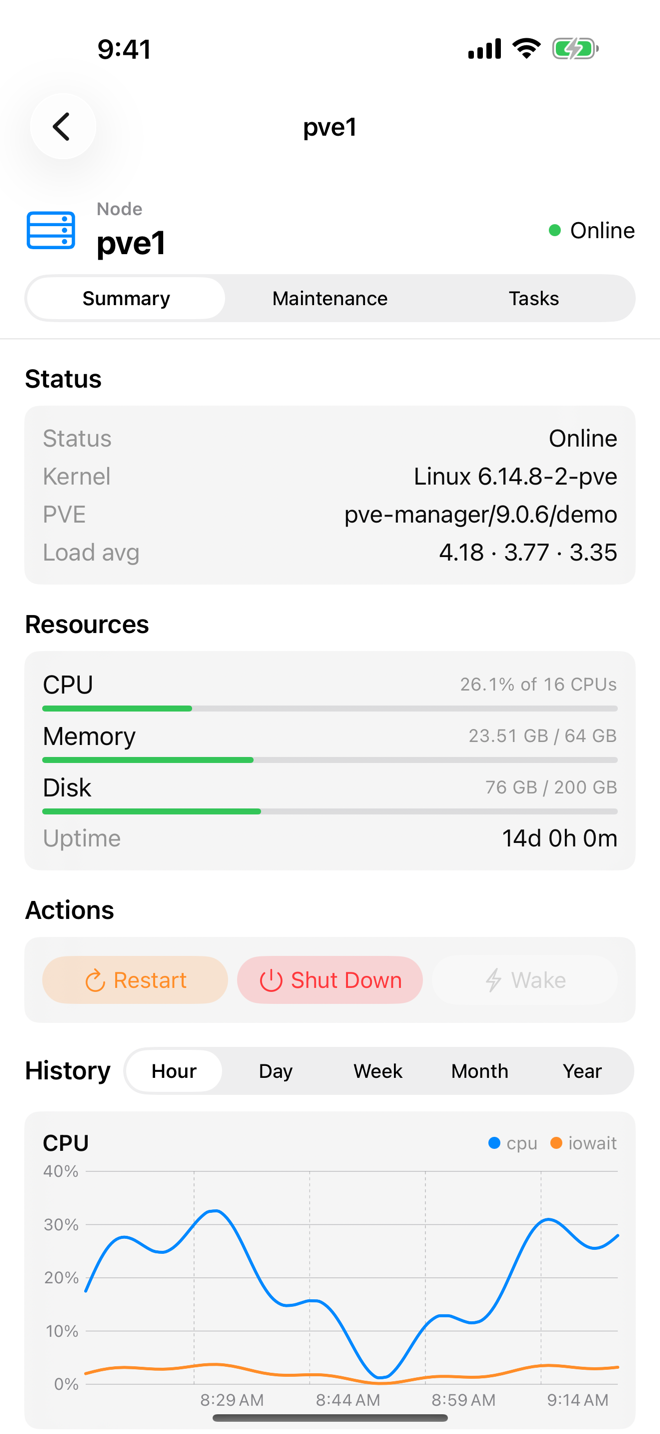
The Summary tab has four cards.
| Card | What it shows |
|---|---|
| Status | Status (online or offline), Kernel (the running kernel version), PVE (the installed Proxmox VE version) and Load avg (the load average over 1, 5 and 15 minutes). |
| Resources | CPU as a percentage of the node's CPUs (for example "12% of 4 CPUs"), Memory used against the total, Disk (the root filesystem) used against its size, and Uptime. |
| Actions | Restart, Shut Down and Wake. Buttons that do not apply are disabled: Wake works only while the node is offline, the other two only while it is online. |
| History | Charts of the node's past load. See below. |
Restart, shut down or wake the node
Tap the action in the Actions card. Restart asks for confirmation, Shut Down asks you to type the node's name, and Wake sends a Wake-on-LAN packet at once. The full walkthrough, including what happens to running guests, is in Restart, shut down and wake a node. Node power actions are free.
Look at the history
- Scroll to the History card.
- Choose a Timeframe: Hour, Day, Week, Month or Year.
- Read the charts:
- CPU, including the share of time spent waiting for I/O (IO wait). High IO wait usually points to slow or busy storage.
- Memory used over time.
- Network, inbound and outbound traffic.
- Load average.
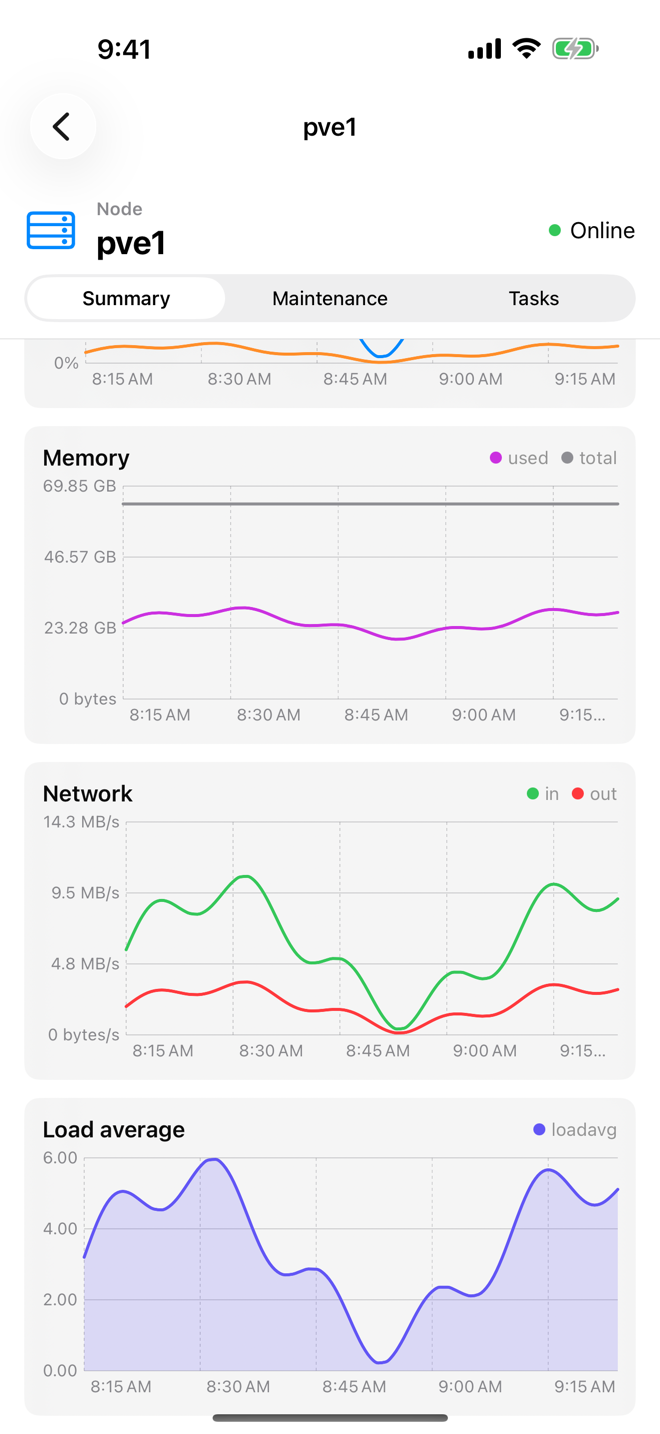
See History charts for how charts work across Aprox.
View the node's tasks
- Open the node's Tasks tab.
- The list shows the node's recent tasks, such as backups, migrations or service restarts. With nothing to show, it reads No recent tasks.
- Tap a task to see its details and live log.
Viewing tasks is free. Stopping a running task needs Aprox Pro and is available on iPhone, iPad and Mac. See Tasks and logs.
Refresh
- Pull down on the screen to refresh it on iPhone, iPad and Android, or press ⌘R on a Mac or an iPad with a keyboard.
- Aprox also refreshes by itself: about every 3 seconds for the node you are looking at, and every 10 seconds for everything else. Charts refresh at most once a minute.
Requirements on the server
To see a node's status and charts, your account needs read access to the node, typically the Sys.Audit privilege (for example through the PVEAuditor role on /).
Good to know
- An offline node keeps its row in the sidebar. Its Summary shows it as offline, and Wake becomes available.
- The other tabs have their own articles: Node maintenance and Node shell.