Proxmox VE has a built-in firewall that can filter the traffic of each guest. The Firewall tab in Aprox manages it for one virtual machine or container: turn it on, set the default policies, and add, edit, reorder, disable or delete rules. Viewing the firewall is free; changing it needs Aprox Pro.
Aprox manages the firewall at guest level. The datacenter and node firewalls, security groups, IP sets and aliases are configured in the Proxmox web UI.
Where to find it
Sidebar › nginx › Firewall.
The tab has two parts: a status row at the top, and the Rules list. On the free plan the Add Rule button shows a lock, and tapping a rule or an option opens an overview of Aprox Pro.
Check the firewall status
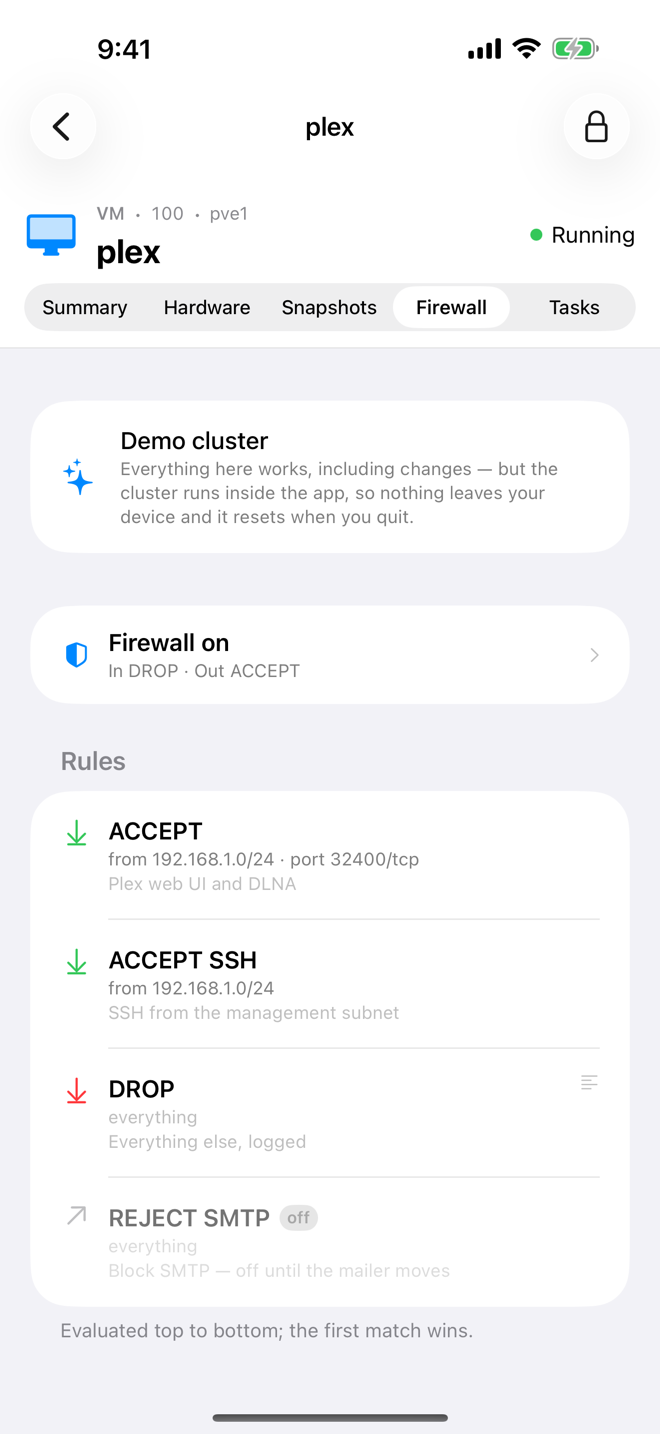
The status row shows Firewall on or Firewall off, and the default policies, for example In DROP · Out ACCEPT.
When the firewall is off, the rules below are dimmed and Aprox reminds you: "These rules are stored but not applied. The firewall also has to be enabled on the guest's network device and at the datacenter."
Turn the firewall on and set its options
- Tap the status row. Firewall Options opens.
- Turn on Firewall. "Rules only take effect once this is on, the guest's network device has the firewall checked, and the datacenter firewall is enabled."
- Under Default policy, set Input policy and Output policy to ACCEPT, REJECT or DROP: "What happens to a packet no rule matched."
- Under Filters, choose what Proxmox enforces:
- MAC filter and IP filter: stop the guest from using a MAC or IP address that is not its own.
- DHCP: allows DHCP, needed for a guest that gets its address that way.
- NDP: allows IPv6 neighbor discovery, needed for IPv6.
- Router advertisement: allows the guest to send IPv6 router advertisements, which only a guest acting as a router should do.
- Under Logging, set the log level for Inbound and Outbound traffic: Off, or a syslog level from
emergtodebug. Proxmox writes the entries to the firewall log of the node. - Tap Save.
Read the rules
- Rules are "Evaluated top to bottom; the first match wins."
- Each row shows the direction, action and what the rule matches, such as a service, protocol, ports and addresses, plus its comment. Disabled rules are marked off, and a rule that logs shows its level ("Logged at …").
- Rules that pull in a security group show as Group …. They are defined at datacenter level and cannot be edited here.
- With no rules: "No rules. Traffic is decided by the input and output policies alone."
Add a rule
- Tap Add Rule.
- In New Rule, set the basics:
- Direction: In, Out or Forward.
- Action: ACCEPT, DROP or REJECT. DROP discards a packet silently; REJECT answers that it was refused.
- Enabled: on by default.
- Choose a Service: one of Proxmox's macros, such as SSH, HTTP or DNS, which bundle the protocol and ports for you. Or choose Custom to fill them in yourself.
- With Custom, set the Match:
- Protocol: Any, TCP, UDP or ICMP.
- Destination port and Source port: a port, a range such as
8000:8080, or a comma list. Leave empty for any.
- Under Addresses, set the Source and Destination: "An address, a CIDR range like 10.0.0.0/24, or a list separated by commas." Leave empty for any.
- Optional: add a Comment and choose a Log level (Off by default).
- Tap Add.
New rules are added at the top of the list, so they are evaluated first. Use Move Down to place them where they belong.
Edit, enable, disable, reorder or delete a rule
- Edit: tap the rule, change it in Edit Rule and tap Save.
- Disable or enable: swipe the rule to the left › Disable or Enable. A disabled rule stays in the list but is skipped.
- Reorder: long-press the rule (right-click on a Mac) › Move Up or Move Down.
- Delete: swipe the rule to the left › Delete, then confirm.
On Android, all of these actions are in the rule's menu (⋮).
Requirements on the server
A rule only takes effect when all three are true:
- The datacenter firewall is enabled (Proxmox web UI: Datacenter › Firewall › Options).
- The guest's firewall is enabled (Firewall Options › Firewall in Aprox).
- Firewall is ticked on the guest's network device: Hardware › network device › Firewall. See Virtual machine hardware or Container hardware.
Editing the firewall typically needs a privilege such as VM.Config.Network on the guest.
Good to know
- Lock yourself out? A DROP input policy without an ACCEPT rule for your SSH or web port cuts you off from the guest's services. The Proxmox console still works, because it does not go through the guest's network. See Console.
- Changes elsewhere. If someone changes the guest's firewall in the web UI at the same time, pull to refresh before you edit, so you work on the current list.